Getting started
This guide takes you from a blank machine to a working network in about ten minutes. Everything you set up here can be changed later.
What you need
- A small computer with at least two wired network ports. It becomes your firewall, DNS server and DHCP server.
- The NopeWarden installer image, written to a USB stick.
- Your modem or provider's cable, and a switch or a computer for your own network.
- If you want Wi-Fi, a separate access point or Wi-Fi router plugged into your own network. NopeWarden does not include wireless support. It has no Wi-Fi drivers or firmware, and a Wi-Fi card in the machine is ignored. See Wi-Fi and wireless in the Networks help.
Install
- Plug the USB stick into the machine and start it from the stick.
- Follow the installer. It asks which port is your internet and which is your own network. Plug in the cables as it says.
- When it finishes, remove the stick and restart.
First sign-in
- On a computer plugged into your own network, open the address shown on the machine's screen. It looks like https://192.168.1.1. Your browser warns that the certificate is not trusted, because the box made its own. Continue anyway; the connection is still encrypted.
- Create the administrator account. Use at least 12 characters. A few random words is easy to remember and hard to guess.
- Answer How will NopeWarden be used? Choose NopeWarden is my router for most homes. Choose the bridge option only if another router must stay in charge. The wizard then asks for the internet cable and your own network.
Nothing is switched on until you finish the wizard. The page then tells you the address to use if it changed.
After setup
- Open Overview. A short checklist shows what is left, such as turning on two-factor sign-in and making a first backup.
- Open Devices & access to name your devices and give them profiles.
- Make a backup under Settings, Backup & recovery.
If you cannot get in
See Getting back in. You will not be locked out for good: the machine's own screen always has a recovery menu.
How easy is it?
NopeWarden aims for no more than three steps for anything you do often. This page lists the everyday jobs, how many steps each takes today, and where the answer is still more than three. A step is one click, or one thing typed or chosen. Opening the page from the side menu counts as one. These counts come from walking through the screens, not from watching people use them.
What it is for
It shows you what to expect before you start, and it is the list the next round of improvements is taken from.
What is on the page
Everyday jobs and their steps
- Cut a device off the internet: Devices, then Pause on its row. 2 steps. To choose how long, open the row first. 3 steps.
- Pause everyone in a profile: Profiles, then a Pause choice. 2 steps.
- Find out why the internet is down: open Overview. The top of the page says Internet is down and gives the reason. 1 step.
- Rename a device: Devices, click the device, type the name, Save. 4 steps, or 3 if you press Enter instead of clicking Save.
- Add a second internet connection: Internet, Add connection, choose the port, Save. 4 steps.
- Add a VPN: VPN, Add a VPN, choose what kind, fill in the details, create it. 4 or more steps, depending on the kind.
- Open a port for a game server or app: Firewall, the Ports tab, Open a port for an app, choose the app, choose the device, Save. 6 steps. A game console that asks for its own ports needs none, because UPnP opens them for that device only.
Common tasks
- Check a job before you start: find it in the list above.
- Report a job that feels long: say which one, so it can be added.
If something goes wrong
Nothing here changes any setting. The jobs that are over three steps and not yet shortened are renaming a device by mouse (4), adding a second connection (4), adding a VPN (4 or more) and opening a port (6). Opening a port by hand is the longest, and the first thing to shorten.
Overview
What it is for
One screen that tells you whether everything is fine, and what needs you. Open it first when something feels wrong.
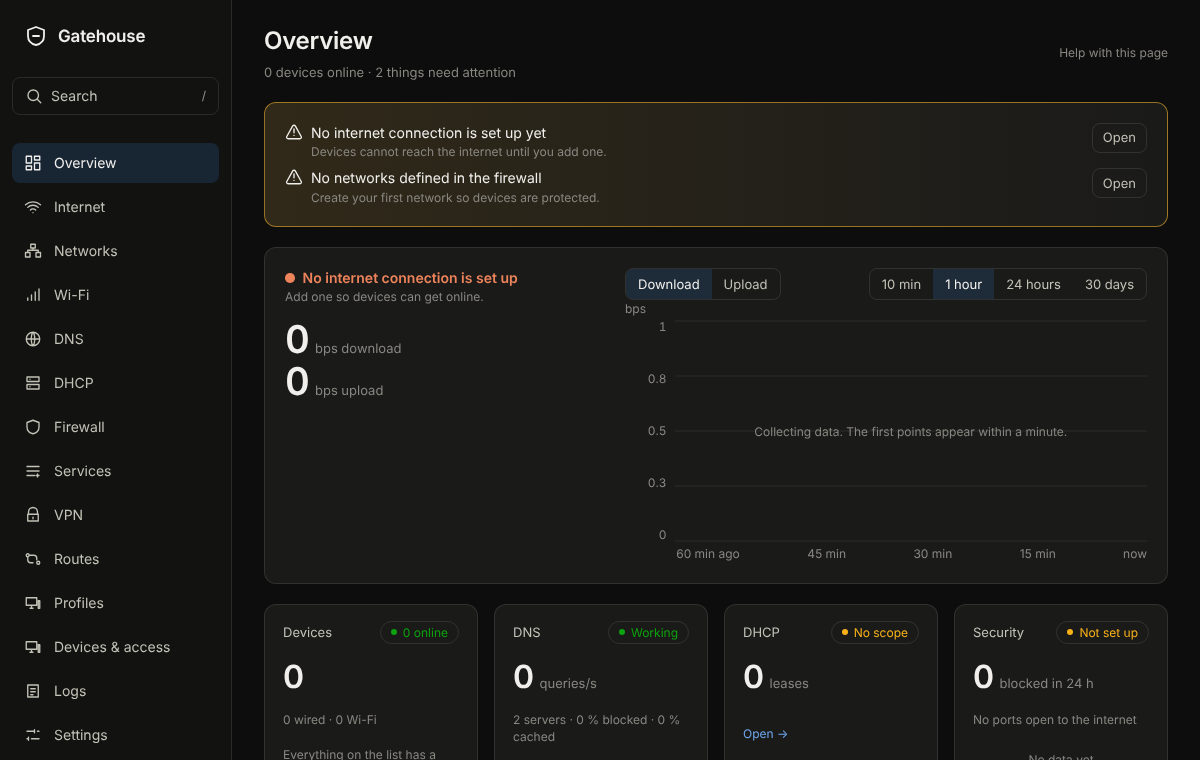
The picture is an example from a new, empty box; yours will show your own devices and numbers.
What is on the page
- A status line under the title: a coloured dot, how many things need you, the first one as a link, and when the page last updated. The dot is red or amber when something needs you and green when nothing does.
- A box that lists the things that need you or are worth doing, such as a first backup or turning on two-factor sign-in, each with an Open button. The same things show as a small dot beside the page in the left menu, so you can see from any page that something is waiting.
- A large card for the internet connection: speed now, and a chart over 10 minutes, an hour, 24 hours or 30 days.
- Devices, DNS, DHCP and Protection: one card each with the numbers that matter now, such as how many devices are online and how many connections were blocked in the last day.
- Where connections go: a world map of where your connections went, by country, with lines from your place to the busiest countries. Choose Outgoing or Incoming, and a period. Until you set your place, the lines start from the middle of your country.
- What happened: the latest events in plain words, newest first, with repeats folded into one row and a count.
- Your networks: each network and how busy it is.
- Busiest devices and Data used, last 24 hours.
- This machine: processor, memory and disk.
Cards update on their own. If updates stop, a "Reconnecting" label appears at the top right.
Common tasks
- To see why the internet is down, look at the first card. It says in words what is wrong and links to Internet.
- To find the busiest device, read Busiest devices and click it.
- To follow a suggestion, press Open beside it.
- To start the map's lines from your home, open Settings, General, Your place on the map and use Find a place with a zip code, city or address.
Example
The What happened card shows a device contacting a known-bad address nine times. Click the row to open Protection, or Open logs to see exactly which destinations they were.
If something goes wrong
If a card is empty, it has nothing to show yet, or the machine has no sensor for it. If every card says it cannot refresh, check that you can still reach the machine, then press Try again now.
New in 0.9.4
- The map has 5 minute and 15 minute ranges as well as 1 hour, 24 hours, 7 days and 30 days. Hover a country to see a popout beside it with its numbers.
- Your VPNs card lists tunnels with their state and speed, capped to the first few; open the VPN page for the rest. A tunnel with no traffic shows a grey Idle pill instead of a warning.
- Each VPN and each network has its own traffic graph and totals on its own page (the Traffic button on Networks).
Internet
What it is for
Where your internet comes from: the cable from your modem, how your provider connects you, and what to do when it stops.
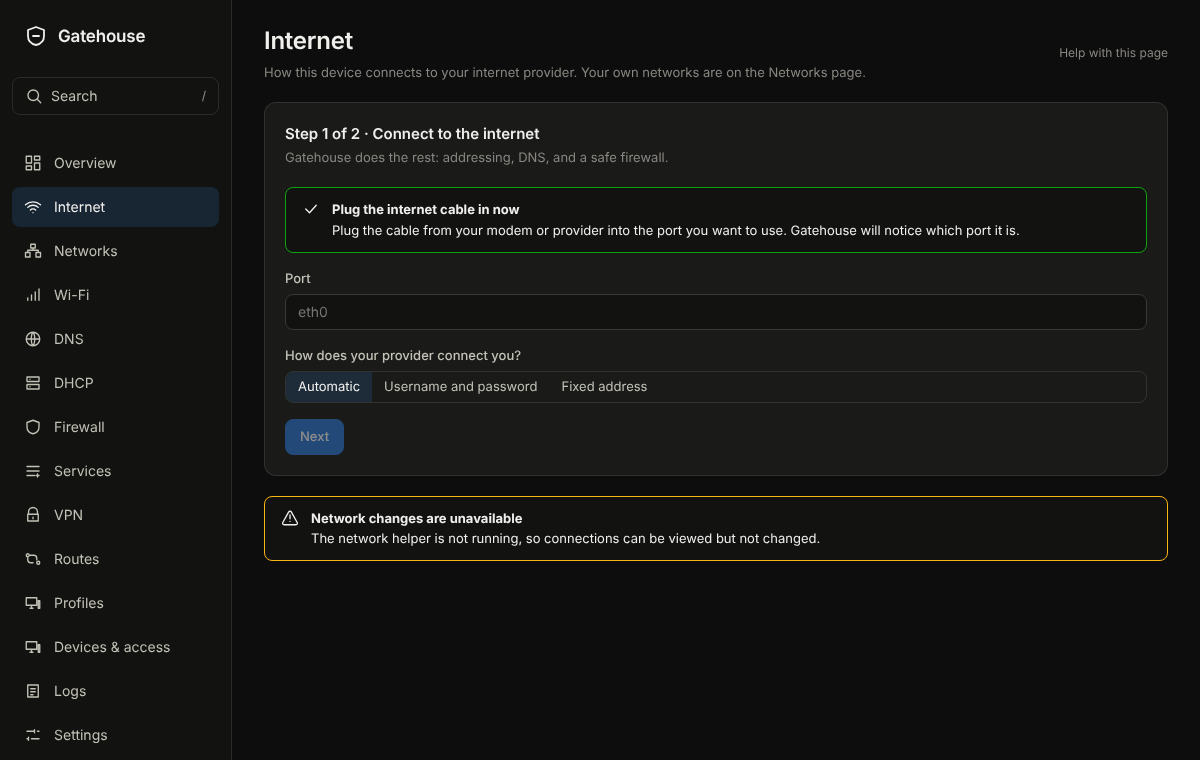
The picture is an example from a new, empty box; yours will show your own devices and numbers.
What is on the page
Tabs along the top: Connections, Speed, Troubleshoot and Usage. Warnings stay above the tabs, and the tab you pick is remembered. Speed appears once a connection is switched on; the last two are for administrators.
- Connections: Internet connections: one row per connection with its state in words (Working, No link, No internet), its port and its delay. Add connection adds a second one.
- Edit a connection to change its Name, the port the cable is plugged into, and How does your provider connect you? (Automatic, Username and password, or Fixed address). Who is your provider? fills in the usual settings for known providers. Advanced options include VLAN number, IPv6, Check by, Order, Share of traffic and Packet size (MTU).
- Speed: Speed test history, Test servers, and Keep delay low when the line is busy, which stops one big download from slowing everything else.
- Troubleshoot holds Test my internet, Tools, and Why can't it reach that?. Usage: Provider report card and Data use and limit keep a month of outages and speed to show your provider, and an optional monthly limit.
Common tasks
- Add a second connection: Add connection, choose the port (NopeWarden notices a cable as you plug it in), choose how your provider connects you, Save, then Review and apply.
- Change provider settings: Edit, change the type, Save, Review and apply.
- Use two connections: give each an Order (1 is used first) or a Share of traffic.
Example
Your cable modem needs nothing: choose Automatic. A fibre provider that needs a user name uses Username and password.
If something goes wrong
No link means nothing answers on the cable: check the cable and the modem's power. No internet means the next device answers but nothing beyond it does: check your provider or restart the modem. A second connection takes over on its own.
Networks
What it is for
Your own networks, such as Home, Guests or Cameras. Each one is separate; what it can reach is decided on the Firewall page.
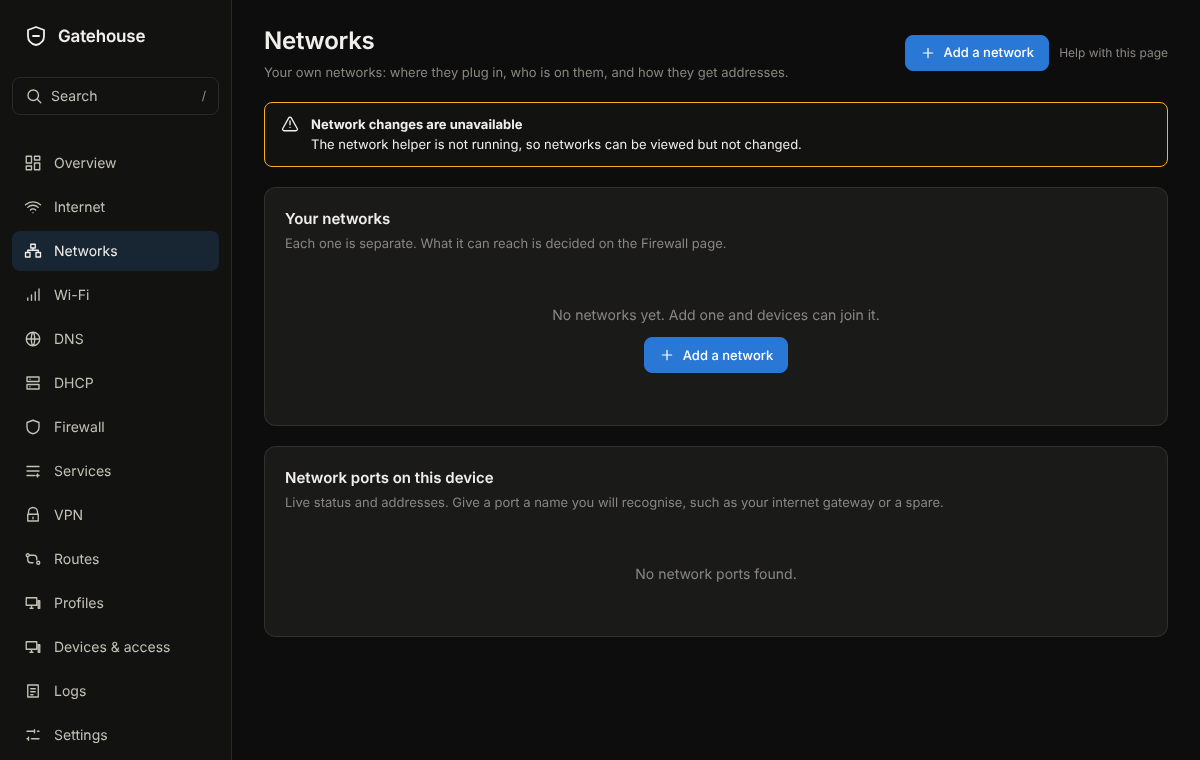
The picture is an example from a new, empty box; yours will show your own devices and numbers.
What is on the page
- Your networks: one row per network with its address, its ports and whether it hands out addresses (DHCP). Add a network makes another.
- Edit a network to change its Address of this router on the network, the Port it is plugged into, a VLAN number if it shares a port, and What it can reach. In use switches it off without deleting it.
- Ports on this network and Add more ports to this network: tick the ports that act as a switch for this network. Devices on any ticked port share its addresses.
- Network ports on this device: live status and addresses of every port. Rename gives a port a name you will recognise, such as your internet gateway or a spare.
Wi-Fi and wireless
Wireless is not included in NopeWarden. The installer has no Wi-Fi drivers or firmware, the console has no Wi-Fi page, and a Wi-Fi card in the machine is ignored and cannot be used as an internet connection or a network. For Wi-Fi, plug a separate access point or Wi-Fi router into a port or VLAN on Networks, choose the type that fits (Guest for visitors), and set up the Wi-Fi name and password on that device. NopeWarden still filters, names and protects every device that connects through it, because they arrive over a wired port.
Common tasks
- Add a network: Add a network, choose what it is for (Trusted, Private, Guest, Isolated or Custom), choose The whole port or A VLAN on the port, Save, Review and apply. A Guest network keeps its devices from seeing each other; turn on Devices here can talk to each other only if they need to.
- Connect a switch or access point that hands out addresses itself (this is also how Wi-Fi is added; see Wi-Fi and wireless below): choose A VLAN on the port and turn on No address, no DHCP. NopeWarden makes the VLAN and the firewall network and gives out nothing.
- Name a port: Rename, type a name, Save. Use the original name puts it back.
- Give a network more ports: Edit, Add more ports to this network, tick them, Save.
Example
Make a Cameras network on its own port with the address 192.168.30.1/24, and on the Firewall page let it reach nothing but itself.
If something goes wrong
NopeWarden refuses a port that already belongs to another network or the internet, and says which. Nothing changes until you apply, and the 60-second way back covers it.
DHCP
What it is for
DHCP gives every device on a network an address when it joins. NopeWarden does this for you.
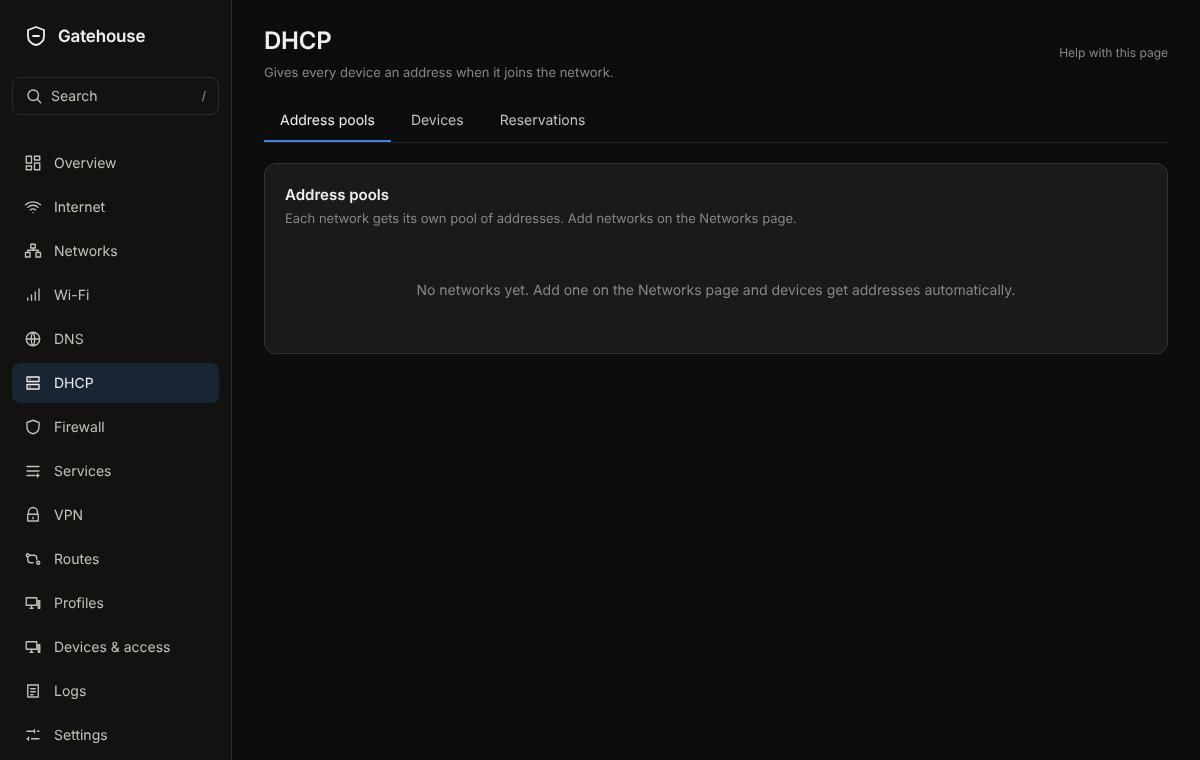
The picture is an example from a new, empty box; yours will show your own devices and numbers.
What is on the page
- Address pools: one per network, with First address to give out, Last address to give out, Gateway, DNS server, How long an address is kept and Home domain. Who hands out addresses here? is NopeWarden, Another router, relayed to NopeWarden, or Another device (NopeWarden stays out of it). Check for other servers listens for a second DHCP server, which causes trouble.
- Devices with an address: every device that has one now, with Reserve and Release.
- Reserved addresses: devices that always get the same address. Add reservation takes the device address (MAC) and the address to keep.
Common tasks
- Keep a printer at the same address: find it under Devices with an address, press Reserve.
- Change the range: edit the pool and change the first and last address.
- Make a pool for a new network: add the network on the Networks page first; it appears here.
Example
Reserve 192.168.1.20 for the printer, then use that address in a firewall rule or port forward.
If something goes wrong
If devices get addresses you did not expect, Check for other servers can show another router handing out addresses. Turn that one's DHCP off.
DNS
What it is for
DNS turns names into addresses. NopeWarden answers for your devices, blocks ads, trackers and malware names, and lets you add your own names.
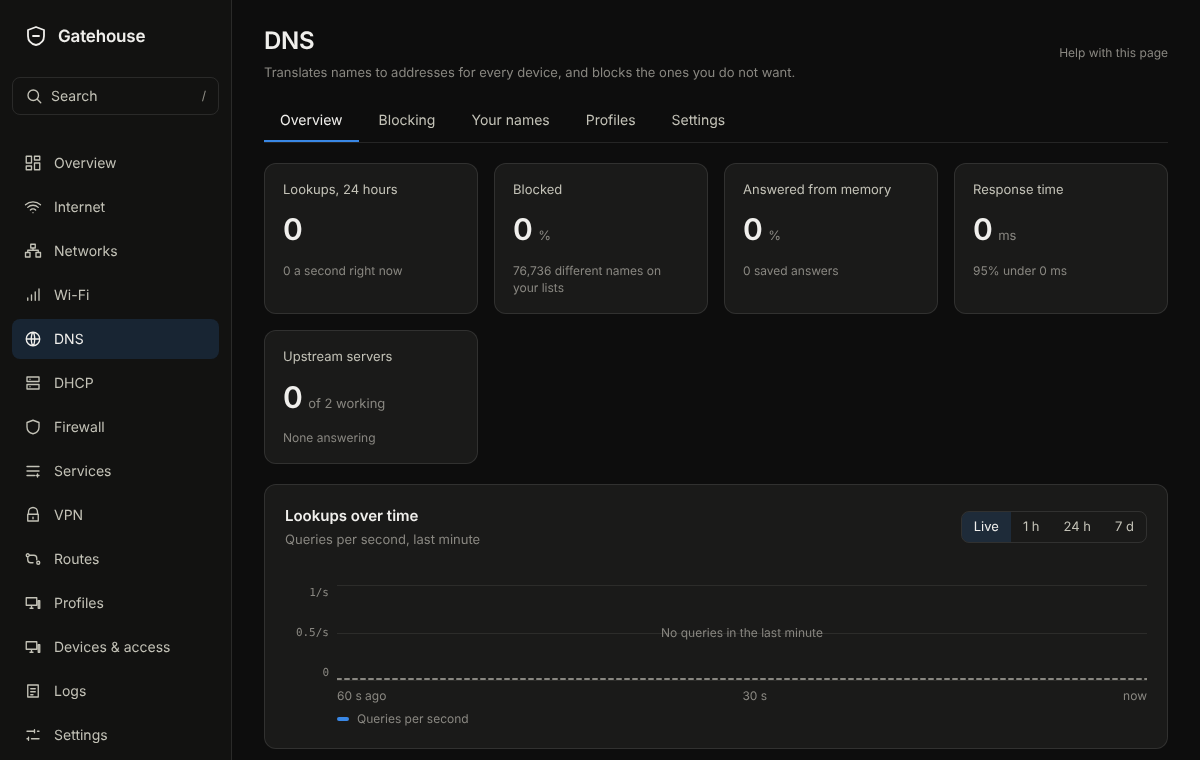
The picture is an example from a new, empty box; yours will show your own devices and numbers.
What is on the page
Tabs along the top:
- Overview: Lookups over time, How queries were answered, Busiest devices, Most blocked and Most asked.
- Blocking: Blocklists you can switch on, Always allow or block exceptions that beat every list, and Why is this blocked? to find which list blocks a name.
- Servers: Upstream DNS servers (where NopeWarden asks when it does not know), Which server is asked first, Add a DNS server, and the encrypted DNS switch.
- Your own names: Give this firewall a name, and names that point somewhere on your network, like nas.lan to 192.168.1.10.
- Profiles: Filtering profiles, which lists apply to which devices.
- Settings: What to do with blocked names, Home domain, Queries per second per device, Remember answers (entries), Keep the query history for (days), Hide device addresses in the history and Tell browsers to use this DNS.
Devices sent through a VPN have their name lookups sent through it as well.
Common tasks
- Allow a blocked site: Always allow or block, type the name, choose allow, Add.
- Find out why a site is blocked: Why is this blocked?, type the name, Check.
-
Name a device on your network: Your own names, enter the name and address, Add.
-
Block an app, a topic or a website for one device, a network or at set hours: this is on the Protection page now, under Apps & topics.
- See what a list blocks: Blocking, View names on the list. Search, and allow a name that should not be blocked.
Example
A shopping site does not load. Type its name under Why is this blocked?; it names the list. Add the name to Always allow or block as allowed.
If something goes wrong
No server is answering under Servers means none of the upstream servers replied. Check the internet. Clear saved answers forgets everything NopeWarden remembers and is safe to use.
Resolve directly (your own resolver)
Under Servers, Resolve directly turns on NopeWarden's own Unbound resolver. Instead of asking a forwarder such as your provider or Cloudflare, it asks the internet's root servers itself, so no single company sees every name you look up. It is off until you turn it on, and it only listens inside the box (port 5335), never on your network.
- Check DNSSEC: names signed with DNSSEC are verified. When a check fails, the query log says why in plain words (for example, the site's signature has expired) rather than just failing.
- Automatic fallback: if direct lookups stop working, NopeWarden switches to your encrypted forwarders by itself and raises an alert. It switches back when direct lookups work again.
- Your own names keep working (split-horizon): names you define, like nas.lan, are answered locally and never sent out.
Changes wait for Review
DNS changes (lists, groups, servers, your own names) now wait on the Review changes page with the firewall and network changes. Apply or discard them together. Discard puts DNS back exactly as it was running.
Schedules
Blocklist refreshes follow the one schedule editor (every N hours, daily, weekly or off). A failed refresh retries after 5 minutes, then 15, 30 and every hour.
DNS follows the route
A device sent through a VPN or a particular internet connection looks up names through that same path, so a website route does not leak lookups to your normal connection. The Routes page lists the addresses learned for each website route.
Firewall
What it is for
Decides what each of your networks may reach, and lets you add exceptions. The type of each network does most of the work in plain terms.
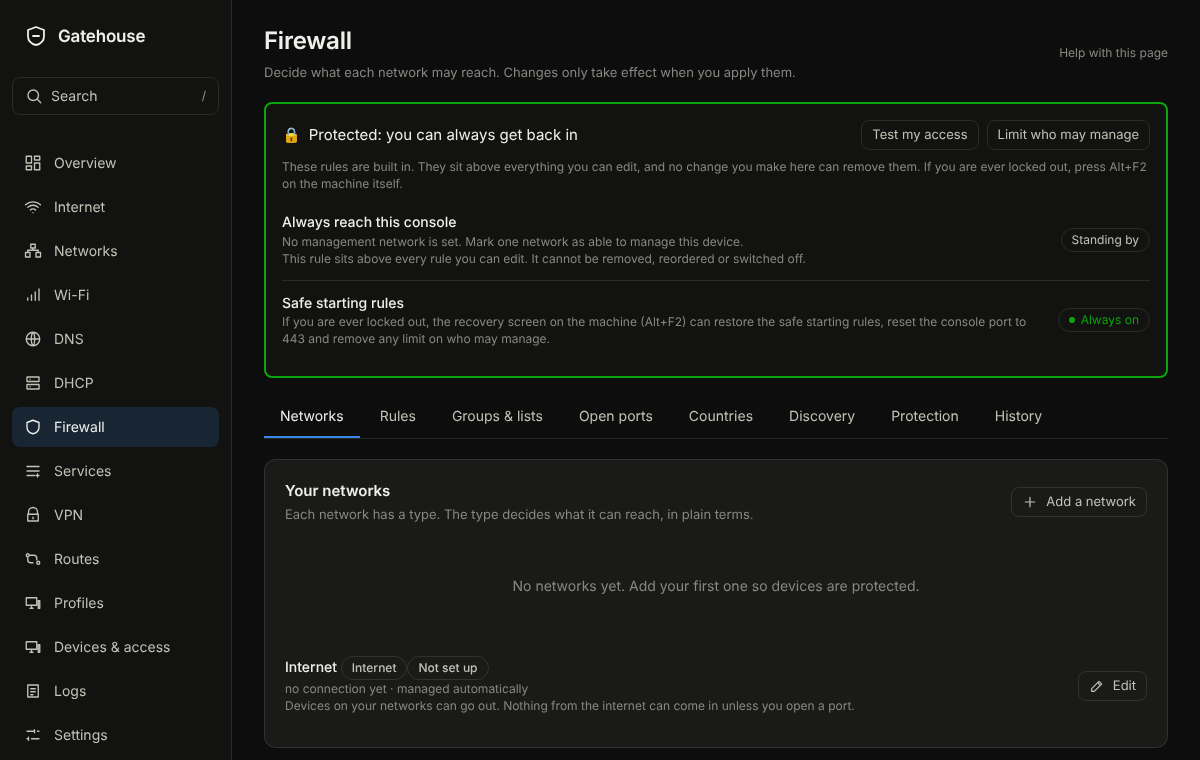
The picture is an example from a new, empty box; yours will show your own devices and numbers.
What is on the page
Tabs along the top:
- Networks: Your networks, each with a type. For each: Can reach the internet, Devices here can talk to each other, Can manage NopeWarden, and under Advanced NopeWarden is the gateway, Make devices here use the enforced DNS server and Allow remote login (SSH). Test my access shows whether a device can reach something. In plain words says what the firewall does right now.
- Rules: your own rules, each with a name, who, what and the action. Each rule has Pause… (for a set time, or until you resume it), Turn off, Edit and Remove, the same controls routes, blocks and port forwards have. Deleting one can be undone for a few seconds. Create policy on the Policies page opens this form for you too.
- Groups & lists: named groups of devices to use in rules.
- Open ports: Open a port lets something outside reach an app on one of your devices, like Plex or a game server. Each one can be paused, put on a schedule, turned off, edited or removed the same way as a rule. A paused rule or port is closed until the time runs out or you press Resume now; the change waits for Review and apply like any other.
- Countries: block or allow whole countries.
- Discovery: let devices on different networks find each other, such as casting and printers.
- Protection: Block encrypted DNS to other servers, Also block well-known encrypted-DNS websites, Ask for a code before changing the firewall and Log blocked traffic.
- History: Change history, every time the firewall was changed and whether you kept it.
Common tasks
- Open a port for a game console: Open ports, Open a port, choose the app, choose the device, Save, Review and apply.
- Stop a network reaching the internet: Networks, turn off Can reach the internet for it.
-
Allow one device to reach another network: Rules, add a rule, choose the device and the service.
-
Open a port in three taps: Open ports, Open a port, tap the app, tap the device. NopeWarden tells you which port it used. If that is not the right port, choose Change port and enter it yourself. A port already in use is never picked for you: NopeWarden asks you for a different one.
- See everything the firewall does: Rules, turn on Show system rules. Your open ports are listed there too.
- Watch for infected devices and break-in attempts, and block apps and topics: this is on its own Protection page in the left menu. It watches and tells you in plain words; it does not block threats. If it stops, your traffic is not touched.
Example
Open Plex for your media server: Open a port, choose Plex, choose the server, optionally limit it to your own country, Save, Review and apply.
If something goes wrong
NopeWarden refuses a change that would leave you no way to manage it, and always keeps safe starting rules above everything you can edit. If a change breaks something, the 60-second way back puts it right.
Letting devices open ports (UPnP)
Let devices open ports by themselves (UPnP) lets a game console or media app ask for a port instead of you opening it by hand. It opens that port for that device only, and it is off until you switch it on. Turn it off if you want every open port to be your own choice.
Policies
What it is for
One list of everything you have set up to allow, block, route or open something for your devices, written in plain words. Firewall rules, routes, blocks and open ports are four kinds of the same thing: who it covers, where to, what for, and when.
What is on the page
- Create policy asks what you want to do (allow or block traffic, send traffic through a VPN or connection, open a port, or block an app, topic or website) and opens the right form.
- Your policies shows every policy with its kind, whether it is working, and one sentence saying what it does. A warning shows on the row when something needs a look.
- All kinds narrows the list to one kind.
- Each row has Pause…, Turn off (or Turn on), Edit and Remove. Edit opens the form on the page that owns that kind of policy. Remove can be undone for a few seconds, except blocks and open ports, which ask first.
- The order of rules and routes, the network matrix and the finer settings stay on the Firewall, Routes and Protection pages. This page reads the same policies as they do, so a change made on either shows on both.
Common tasks
- Keep a device offline at night: Create policy, Allow or block traffic.
- See everything that affects one kind of traffic: scan the list, or use All kinds.
- Turn something off for a while without deleting it: Pause….
If something goes wrong
A policy marked Needs a look or showing a warning explains itself on its row. Policies made by the countries page and the network matrix are not listed here; they live on the Firewall page.
Protection
What it is for
One place for keeping the network safe: a check of what to fix, blocking apps and topics, and watching for threats. Block lists for ads, trackers and adult sites stay under DNS.
What is on the page
Tabs along the top:
- Overview: Protection at a glance gives one sentence of verdict and a line each for the security check, your blocks and threat watching. Below it, the Security check lists what to fix, with a button that goes to the right page.
- Apps & topics: Block apps, topics and websites. Add a block chooses what to block (an app, a topic such as adult, gambling or games, or a website), for whom (everyone, a network, a profile or one device), and when (always or at set hours). A device can be given an exception, and Pause… stops a block for a set time or until you resume it. Blocks have the same controls as firewall rules and routes: pause, turn off, edit, remove.
- Threats: Threat watching. Until you install it, the page offers Install threat watching and tells you the packages, the download size, the disk space and any worry about this machine's memory or processor before you agree. Once installed: the switch Off or Watch and tell, and the tabs Alerts, Settings, Rules and Advanced.
- Alerts show what was noticed in plain words, named after the device (the name you gave it, or its network name). The same thing happening many times is one row with a count. Harmless engine chatter is kept in a folded section at the bottom. Each row has Allow for this device, Allow for all and Never check this device.
- Settings has How closely to watch (Light, Balanced, Strict or Custom) and Limits for the processor and memory. Custom appears once you change a group under Rules; Restore defaults goes back to the setting's own groups.
- Rules has Update rules now, Roll back to the previous rules, Groups of checks and Single checks. Each group has a plain description. Switch groups on or off, then press Apply; nothing changes until you do, and Discard drops your changes.
- Advanced has Reset all threat settings, Program log (the last lines the program wrote, the first place to look when it is not running), Allowed checks, Devices never checked, Save or load your tuning, and Program, where Remove threat watching is.
Common tasks
- See what needs fixing: Overview, read the Security check, press the button beside a risk.
- Block an app for a child's device: Apps & topics, Add a block, choose the app, choose the device, choose the hours, Save.
- Turn on threat watching: Threats, Install threat watching, read the sizes, Install. When it finishes, choose Watch and tell.
- Quiet a harmless alert: Alerts, Allow for this device.
- Lower its load on a small machine: Threats, Settings, choose Light, or lower the Limits.
- Make your own set: Threats, Rules, switch groups, Apply. To undo, Settings, Restore defaults.
- Go back after a bad rule update: Threats, Rules, Roll back to the previous rules.
What happens if something goes wrong
These features only add protection. If they fail, the protection goes and your internet carries on: your traffic is never held up.
- A block that cannot be worked out lets the lookup through, and the Logs say so once an hour.
- Threat watching reads copies of the traffic. If it stops, crashes or is removed, nothing changes for your devices. If it uses all of its processor share for ten minutes, NopeWarden switches it off by itself, says why on this page and in the Logs, and leaves it off until you switch it on again.
- Blocking threats (Protect) is not available. It stays off until watching has proved itself on real traffic.
- Most traffic is encrypted, so watching finds known bad servers and attack patterns, not everything.
Example
A new camera starts talking to an address on a bad list. The Threats tab shows "A device may be infected and talking to a known bad server", with the camera's name. You unplug it, or choose Never check this device if you know it is fine.
If something goes wrong
If the page says The program keeps failing, the program starts and stops again and again; read the reason, then Program log under Advanced (or Diagnostics in the left menu). If Install threat watching fails, the page shows the reason; try again once the internet works and there is disk space. If the page says the program is not running, your traffic is not affected and NopeWarden keeps trying to start it. If it keeps stopping, choose Light under Settings. If a rule update breaks things, use Roll back to the previous rules.
Names inside a topic, and your own names per profile
- View names next to a topic shows the names it blocks. Search, and allow a name that should not be blocked.
- Each profile can have its own custom blocked names.
- Threat alerts look up the name behind an address and try again if the first lookup finds nothing; Look up again retries now.
- Security check: each fix button opens the exact window that changes the setting.
Profiles
What it is for
A profile decides which blocklists apply to a device and when the internet is off for it, such as a Kids profile.
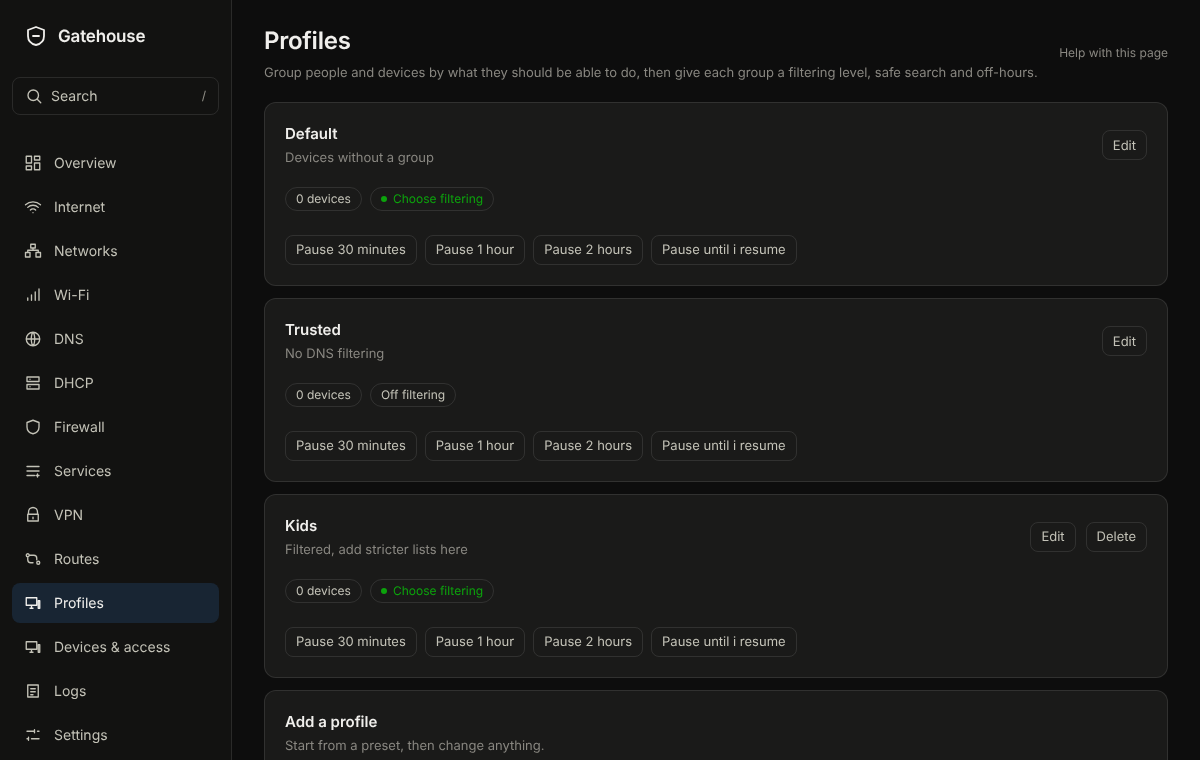
The picture is an example from a new, empty box; yours will show your own devices and numbers.
What is on the page
- Profiles: each with a Name, How much to filter, Safe search, and Internet off at set hours (Off from and Back on at). Pause buttons stop the internet for that profile's devices for a while, and Resume internet undoes it.
- Add a profile: start from Blank profile, Basic or Enhanced, then change anything.
- Filtering per network: choose a profile for a whole network. Devices that have a profile of their own keep theirs.
Common tasks
- Pause a profile: press the pause length you want on the profile.
- Make a Kids profile: Add profile, choose a preset, name it, set the hours, Save.
- Put a device in a profile: on Devices & access, open the device and choose its Profile.
Example
Kids: Enhanced filtering, Safe search on, internet off from 21:00 to 07:00.
If something goes wrong
Deleting a profile moves its devices back to the Default profile. Safe search works for browsers that use NopeWarden for DNS; turn on forced DNS for devices that do not.
Routes
What it is for
Send some traffic through a VPN by rule: everything from certain devices, or only some destinations.
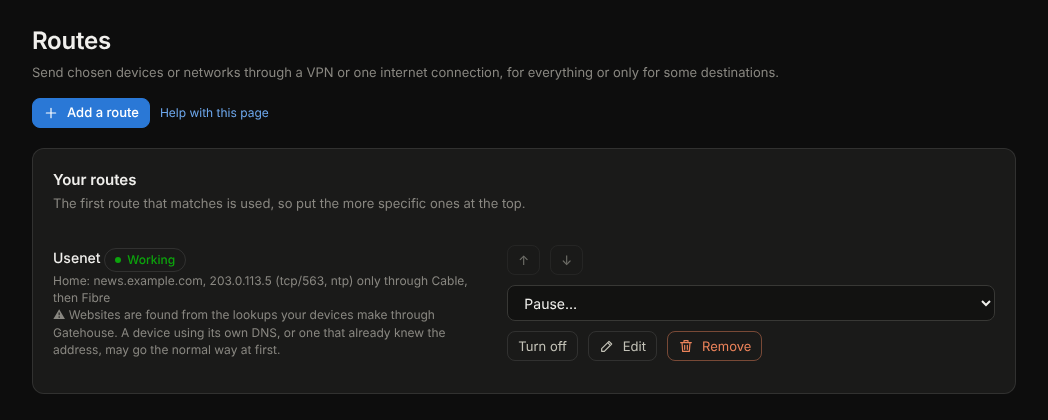
The picture is an example; yours will show your own routes and connections.
What is on the page
- Policies (next to Routes in the menu) lists routes together with firewall rules, blocks and open ports, and its Create policy button asks what kind you want and opens the right form. They all use the same pickers, the same words and the same controls.
- Your routes: the first route that matches is used, so put the more specific ones at the top with Move up and Move down. Each row has Pause…, Turn off, Edit and Remove; every route also says in words what it does and whether it is working, paused or on a schedule. Every change is written to Admin activity.
- Add a route takes a Name, Send the traffic through (a VPN, internet connections, or a connection group). Choosing internet connections lets you tick one or several in the order you want: the first one that is working is used, or choose to share across them. A connection kept only as a backup can be chosen on its own, Kill switch for a VPN, then Who, Where to, What for and When. These are the same pickers the firewall rules use, so a device, a network, a group, an address, a website or a country is chosen the same way everywhere.
- Who takes any mix of networks, devices, device groups and addresses. Where to takes any mix of websites, addresses, ranges and countries. What for takes services such as NTP or NNTPS, your own saved port lists, or ports like tcp/563. Leave a box empty to mean everyone, anywhere, or any traffic. Several entries in each box are combined: every one of them applies.
- When limits the route to certain hours or days of the week. Outside them the traffic takes the normal way.
- Turned on keeps a route without using it.
- VPNs that send whole devices through them are set up on the VPN page and shown below your routes.
Common tasks
- Send one website through a VPN: Add a route, type it under Where to, choose the VPN, Save.
- Send a country's traffic: choose a country under Where to.
- Send one kind of traffic: choose it under What for, for example NTP, or tcp/563 for Usenet over TLS.
- Pause a route for a while: Pause… and choose how long, or until you resume it. Resume now brings it back. Connections already open keep the way they started; new ones follow the pause.
- Remove deletes a route and can be undone for a few seconds.
Example
A streaming app only works from another country: add a route for its website through a VPN in that country, for your TV only.
If something goes wrong
Not working means the VPN behind the route is down. Needs two connections means a route needs more than one internet connection. With Kill switch on, the traffic stops rather than leaking.
Addresses learned for a website
Each website route shows the addresses NopeWarden has learned for the site and when. They are filled in as devices look the site up, and cleared when you delete the route. If you edit a route, saving works with the route exactly as the list shows it.
Services
What it is for
A service is a name for one or more ports, such as "plex" for tcp/32400. Rules pick services by name instead of by number.
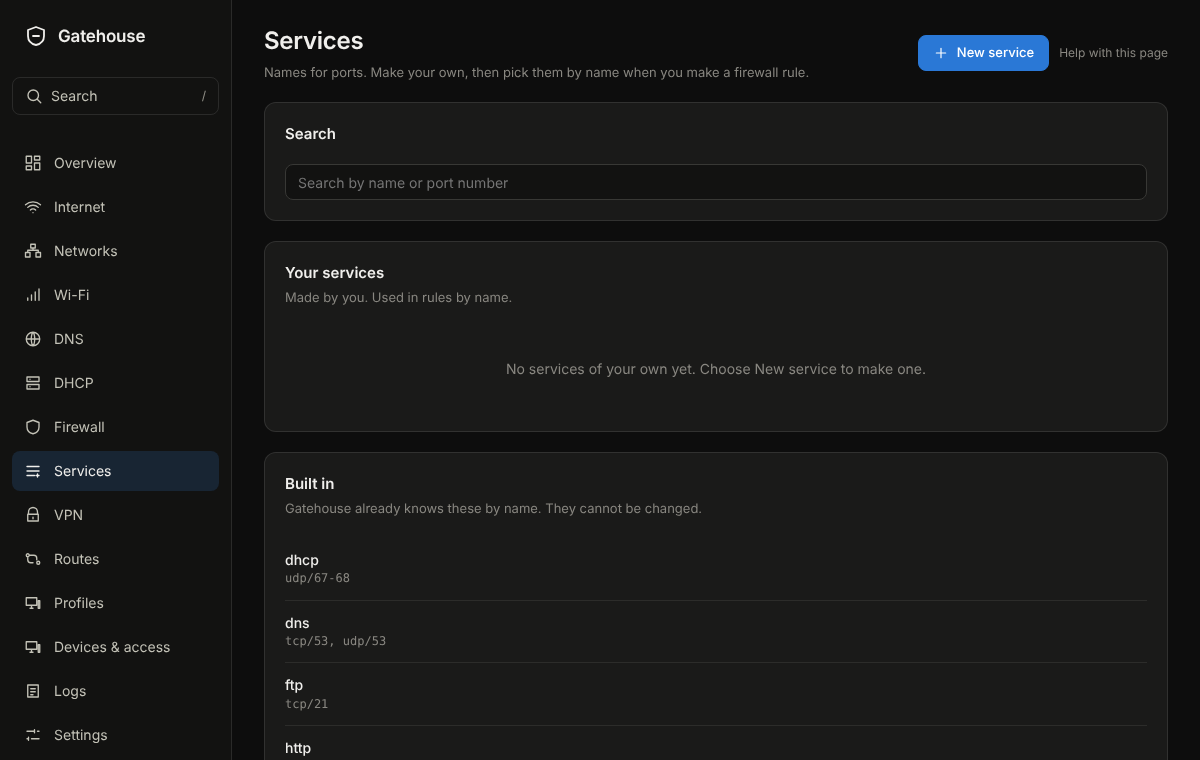
The picture is an example from a new, empty box; yours will show your own devices and numbers.
What is on the page
- Search services: type a name or a port.
- Your services: the ones you made, with New service, Edit and Delete. Deleting one can be undone for a few seconds, unless a rule uses it.
- Built in: names NopeWarden already knows. They cannot be changed.
Common tasks
- Make a service: New service, give it a Name, enter Ports, one per line (for example tcp/32400 or udp/27000-27050), Save.
- Use it: in any rule or open port, type its name in the "What for" box. Several can go in one box, separated by commas or spaces.
-
Find a built-in one: type its name in Search services.
-
Rename a service you made: Edit, change the Name, Save. Rules and open ports that use it follow the new name. A service used by an open port cannot be deleted until the port is removed.
Example
Make "console-game" with udp/3074 and tcp/3074, then use it in a rule for your console.
If something goes wrong
A service that a rule uses cannot be deleted until the rule changes; NopeWarden names the rules.
VPN
What it is for
Send some devices through a VPN provider, let your phone reach home from anywhere, or join two sites together.
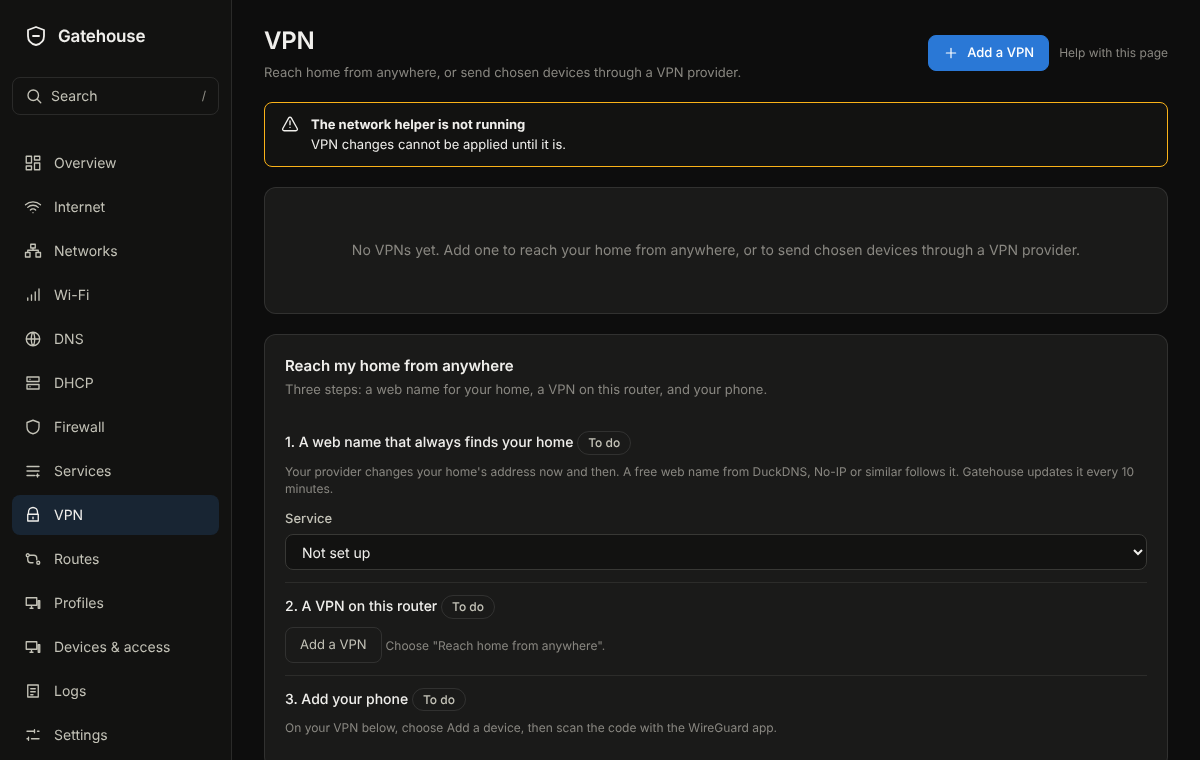
The picture is an example from a new, empty box; yours will show your own devices and numbers.
What is on the page
- Add a VPN starts a guided choice: use a provider's file, let devices reach home, or Join two sites.
- Each VPN has a card with its state in words. For a provider VPN: Who uses it? (Whole networks, Device groups or Individual devices), Kill switch, Test address, Internet sees you as and Checked.
- Packet size on a provider card is the biggest packet that fits through the tunnel, with where the number came from: measured, from the profile, or default, could not confirm. Test packet size measures it now and shows what each test address answered.
- Test addresses (a card below your provider VPNs) holds the lists used to measure the packet size and to find the address the internet sees. You can add, change, remove and reorder entries, and Restore defaults puts the built-in lists back.
- Check beside a device shows, by itself every few seconds, whether its connections and name lookups really leave through the VPN.
- For a VPN to reach home: Add a device gives a file and QR code for a phone or laptop. Devices connect to shows the address they use.
- Join two sites makes a code you take to the other site.
Common tasks
- Send your computer through a provider: Add a VPN, drop the provider's file, choose Individual devices and pick the computer, Add and connect.
- Reach home from your phone: Add a VPN, choose to reach home, name the first device, scan the QR code.
- Check it works: press Check next to the device.
Example
Set Kill switch on for a device that must never use your normal connection. If the VPN drops, that device loses internet rather than leaking.
If something goes wrong
Needs attention says what failed. If a device shows your normal connection under Internet sees you as, press Check, then Review and apply if it says the address changed. With the kill switch off, name lookups fall back to the normal connection while the VPN is down, and the card says so.
Packet size
A tunnel has to fit inside the packets of the connection under it, and its own wrapping takes room. If the tunnel is set too high, small packets such as a ping still pass, so the card can say Working, while big ones, such as a secure web page, are dropped without a word. Pages then stall or never load.
NopeWarden measures this for every VPN that goes out to a provider or another site, and sets the size itself:
- It starts from the size the provider's file asks for (
tun-mtu), or the usual size for the kind of tunnel (1500 for OpenVPN, 1420 for WireGuard) and steps down through 1500, 1460, 1420, 1400, 1380, 1360, 1340, 1300 and 1280 until packets get through. 1280 is the lowest, the smallest size the internet must carry.
- It sends the tests to all the addresses in the list at once. An address that never answers a ping is left out. The largest size that at least two addresses answer is used. If only one address answers, its answer is used.
- It measures again straight away after the tunnel disconnects and reconnects, again when a big packet stops getting through while small ones still do (checked about every 20 seconds), and in full every 30 minutes.
- If small packets pass but no size could be confirmed, the tunnel uses 1280 and the card says so. NopeWarden tries again after 10 seconds, 30 seconds, 1 minute and then every 5 minutes, and moves up as soon as a bigger size passes.
- If nothing answers at all, the tunnel is not passing traffic, and no size is claimed.
The same size applies to everything that crosses the tunnel, so the firewall's rule that trims the size of web connections follows it automatically.
Test packet size runs the same test on demand, applies the answer, and shows each size with the addresses that answered it.
The address the internet sees
NopeWarden asks one service after another, out of the tunnel, until one answers with a plain public address. The built-in order is Google (a small DNS lookup), Amazon's check page, Cloudflare (a small DNS lookup), then Cloudflare's trace page. A failed lookup is tried again on the next round (about 20 seconds); a good answer is kept for ten minutes, and asked again at once after a reconnect. When it cannot be found, the card says why.
A provider that quietly redirects name lookups could make a DNS answer wrong. NopeWarden skips any answer that is not a public address and moves to the next service.
Test addresses
The Test addresses card has two lists. The first holds the plain IPv4 addresses used for the packet size test (built in: 1.1.1.1, 8.8.8.8, 1.0.0.1, 8.8.4.4, 9.9.9.9). The second holds the services asked for your address, written as dns:google, dns:cloudflare or web:https://host/path. Each list can have up to 8 entries, and an entry in neither list can be a name, because a name would need DNS to work first. A VPN's own Test address, when you set one, is always tried first for that VPN.
Traffic for each VPN
Every VPN page has a live graph of what is going through it and totals for the chosen range. A tunnel that is up but quiet shows a grey Idle pill.
Importing a profile
NopeWarden accepts the profile shapes providers actually ship: files with a byte-order mark, Windows line endings, and extra harmless directives. It still refuses anything that could run a program or read another file, and says in plain words which line caused the refusal.
Devices & access
What it is for
Every device that has joined your network. Rename it, give it an icon, put it in a profile, or pause its internet.
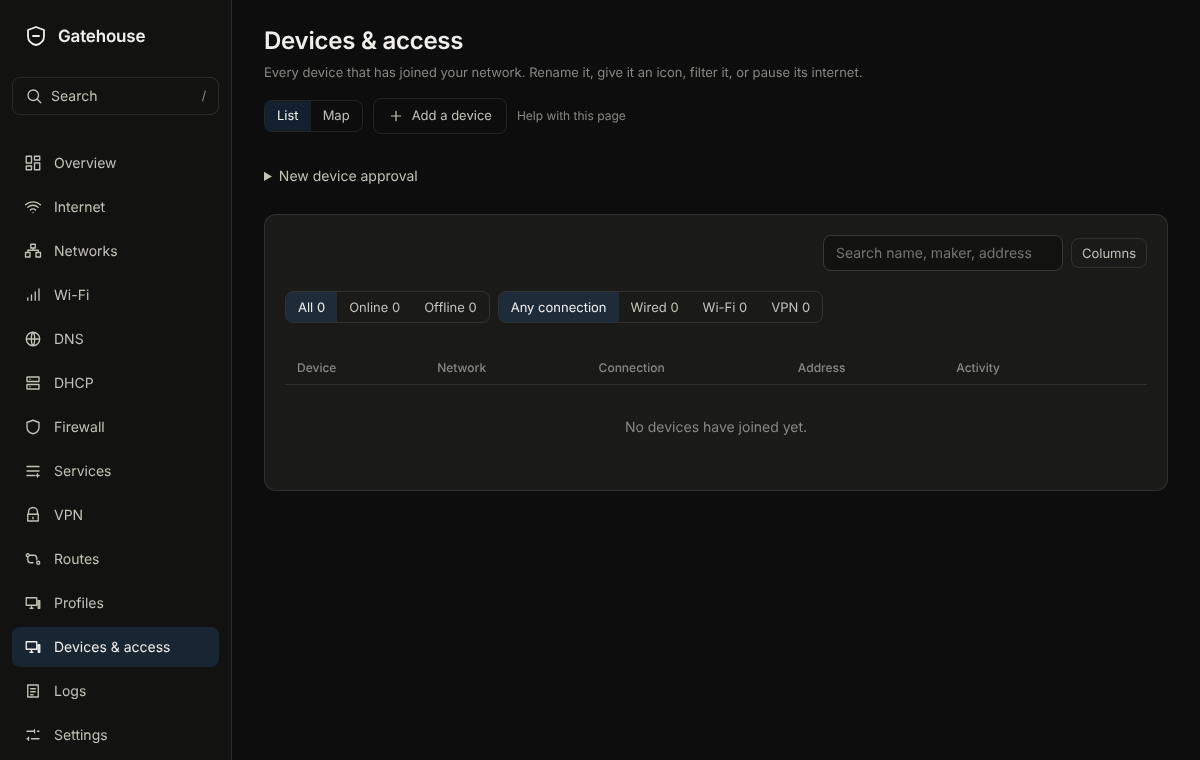
The picture is an example from a new, empty box; yours will show your own devices and numbers.
What is on the page
- Search devices and a List or Map view. Columns and rows chooses what the table shows.
- Each row shows the device, its network, how it is connected and whether it is allowed online. A button on the row pauses or resumes it; an offline device has Forget.
- Open a device to change its Name, Icon, Profile, DNS filtering, Notes and Fixed address, or Pause the internet for a set time. Allowed online turns it off without losing its settings. For a device on a VPN there is also Sent through and a Check. The panel also lists Firewall rules that mention it.
- Add a device records one that has not joined yet.
Common tasks
- Pause a device: press its row button, or open it and choose a pause length. Resume now brings it back.
- Rename a device: click it, type the name, press Enter.
-
Keep a device at the same address: open it, turn on Fixed address.
-
Let the internet reach an app on a device: press Open a port on its row, tap the app, done. Then Review and apply at the bottom.
Example
Pause the games console for two hours at homework time: open it and choose the two-hour pause. It comes back by itself.
If something goes wrong
A device missing from the list has not joined yet, or has not asked NopeWarden for an address. Use Add a device to record it. If a name is wrong, rename it; the old name is only a guess from the network.
Review changes
What it is for
Saving a change to the firewall, the network or a policy puts it live straight away. Sometimes you would rather collect several changes first and put them live together. Save for later does that, and this page is where those changes wait.
How saving works
- Save and apply (the main button) saves the change and puts it live after a moment. NopeWarden then checks that you can still reach it and keeps the change. If a change cuts you off, nothing more is needed: it undoes itself within 60 seconds.
- Save for later saves the change but leaves it waiting. It is offered on the forms for rules, routes, open ports, services, device groups, internet connections, connection groups, networks, network types, DHCP networks and reservations, VPN settings, letting networks see each other, and who may manage NopeWarden. A small badge showing how many changes are waiting, with a link to Review changes, appears at the top of every page.
- Quick actions such as Pause…, Turn off and Remove are applied the same way as Save and apply.
- If NopeWarden finds something worth a second look (a warning or a problem), or other changes are already waiting, nothing goes live on its own. The change waits here, with the reason shown.
What is on the page
- Changes waiting: every saved-but-not-live change, in plain words and in the order you made them.
- Worth knowing before you commit and problems: what NopeWarden found when it checked. A problem has to be fixed before you can commit.
- Verify and commit puts everything waiting live in one step, network first and then the firewall, each with the 60-second safety.
- Discard on a line goes back to just before that change. Later changes can depend on earlier ones, so it also drops every change saved after it, and asks first. On the last line it drops only that change.
- Discard all changes puts everything back exactly as it was running. It is offered only when NopeWarden still has the copy it made before the first waiting change.
- Code from your authenticator app shows when you asked for a code before changing the firewall. NopeWarden remembers a good code for 15 minutes.
Common tasks
- Make three changes and put them live together: choose Save for later on each, open Review, check the list, Verify and commit.
- Undo a change that just went live: press Undo now on the countdown at the bottom of the window.
- Change your mind about one change: press Discard on its line. About all of them: Discard all changes.
If something goes wrong
If you are told other changes are waiting, open Review and commit or discard them first. If a commit fails, the message says which part (network or firewall) and what was wrong; the changes stay waiting.
The DNS area
Review now has three areas: Networks, DNS and Firewall. DNS changes wait here like the others. Applying sends them live; discarding restores DNS exactly as it was running.
Logs
What it is for
What happened on your network and why: connections the firewall allowed or blocked, names your devices looked up, and changes.
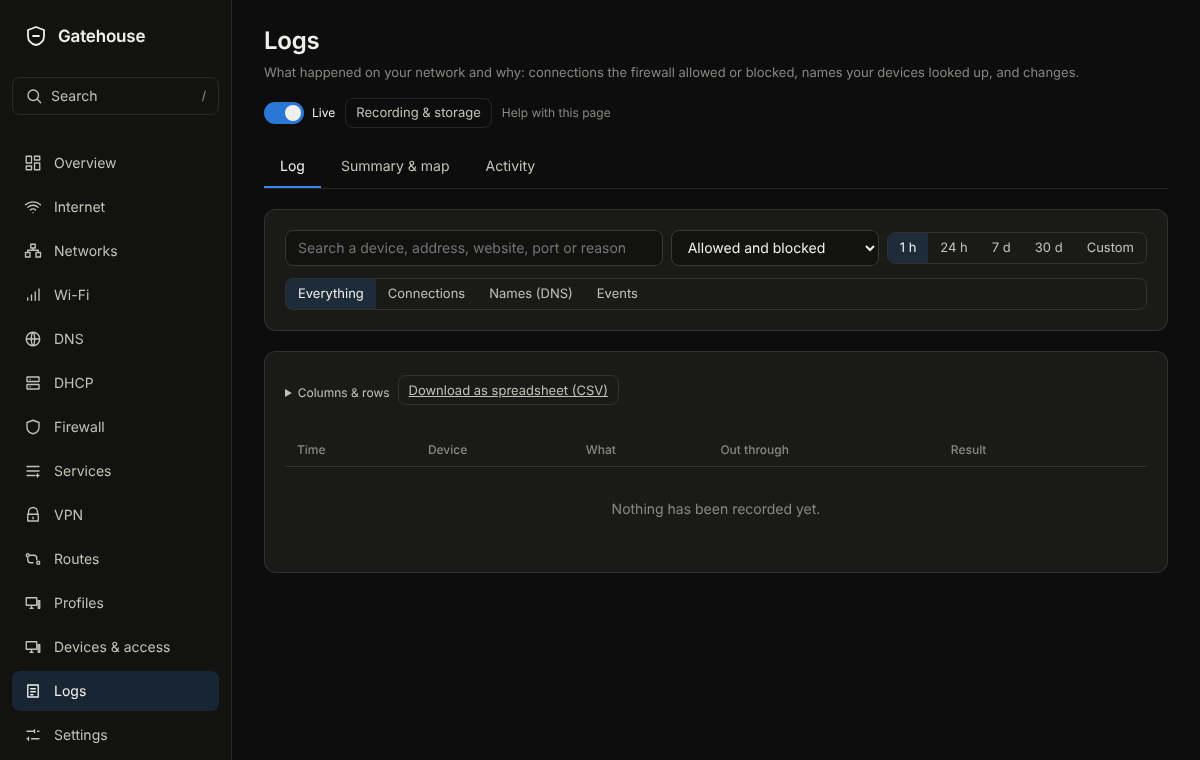
The picture is an example from a new, empty box; yours will show your own devices and numbers.
What is on the page
- Tabs: Log, Summary & map, Activity and, for administrators, Admin activity.
- The search words are highlighted in each row, and the search is part of the address (for example #/logs/log?q=printer), so a search can be bookmarked or sent to someone.
- Admin activity answers who did what to NopeWarden: sign-ins and failed attempts, and the changes people made, each with who, what, when and from which address. Search with several words (every word must match a person, an action or an address) and choose a time range; the count says how many match and how far back it searched.
- Three places hold three kinds of log. Logs is what your network did. Diagnostics is how NopeWarden itself is running (its system log). Admin activity is who changed what.
- The search box and filters: Allowed and blocked, a time range (1 h, 24 h, 7 d, 30 d, or custom) and Everything, Connections, Names (DNS) or Events. Live updates can be turned off.
- Every row is at most two lines: the app or website on top, the port and service below. Out through shows which connection or VPN it left by. Identical neighbouring entries become one row with a count.
- Click a row (or press Enter) for the rest: why, the rule, the host and address, the country, the networks, the times, and Block this or Allow this.
- Columns & rows chooses columns and how many rows load at a time. Download as spreadsheet (CSV) exports what you see.
- Recording & storage chooses what is recorded and how long it is kept.
Common tasks
- Find out why something was blocked: search for the device or site, click the row, read Why.
- Block a destination: click its row, then Block this.
- See which devices use a VPN: look at Out through.
Each row shows the internet connection or VPN it left through. For a DNS lookup that is the connection NopeWarden itself used to ask the DNS server; a lookup answered from memory shows none.
- Protection features that failed leave a line here: a block that went wrong (once an hour), threat watching that stopped, or threat watching that NopeWarden switched off for using too much of the machine. Your traffic is not held up in any of these cases.
- Opening and closing the terminal, switching it on or off, restarting a service and saving a support bundle are recorded here too, under Diagnostics.
- NopeWarden's own health checks are hidden. To see them, turn on Show NopeWarden's own checks.
Example
Search for a game console, set the range to 1 h, and click a blocked row. Allow this makes a rule for exactly that traffic.
If something goes wrong
If nothing is recorded, check Recording & storage; allowed and blocked connections can be switched off separately. Only the first packet of each connection is recorded, and a flood is capped.
Diagnostics
What it is for
Answers one question: is NopeWarden itself working? It shows how each part is doing, lets you read the system log, test the connection, and, if you switch it on, open a command line on the firewall. It is for the day something is not working and there is no screen or keyboard on the machine.
What is on the page
Tabs along the top:
- Health & services: the top card, Is NopeWarden itself working?, gives one sentence (Everything is working. or how many things need a look), with problems first and a Look button that opens the right place. Under it are facts: how long NopeWarden and the machine have been running (a restart you did not expect stands out), when the firewall was last applied, disk and log space, whether the clock is set, and warnings in the last hour. Then Services: each part of the system with a state: Running, Starting, Failing or Off. A failing one says why in plain words, such as the last thing it complained about. Show log opens its log and Restart restarts it. Save a support bundle saves a text file with the machine, the network, every service's state and recent log lines. Anything that looks like a password or key is hidden in it. Send it when asking for help.
- System log: messages from NopeWarden and the machine. Only warnings and errors show until you tick Everything. Choose From (everything, or one service), Time, and Search: every word must appear, the box looks through up to 5000 lines, and the words are highlighted. Follow refreshes every 5 seconds. Known messages get a plain explanation next to them.
- Network tools: the connection tests, ping, traceroute and name lookups.
- Terminal: a command line on the firewall. See below.
Console connections, under Services, records the live connection your browser keeps open: when each opened and closed, from which address, and why it closed. A failed write usually means the network between you and the box dropped it.
The Log card under Services has Show the log of (one service, or Warnings from everything), How many lines, Only lines containing and Refresh.
Common tasks
- Find out why a service is not working: Health & services, read the reason, press Show log.
- Restart a service that is stuck: Restart.
- Get help: Save a support bundle, and send the file.
- Run a command by hand: Terminal, Switch the terminal on, enter your password or code, then Open a terminal.
The terminal
A terminal is a full command line with the highest rights on the machine. Anyone who can sign in as an administrator and pass the check can do anything on it, so NopeWarden treats it carefully:
- It is off until you switch it on, and only administrators can use it.
- Switching it on asks for your password, or your authenticator code if you use one. Opening it asks again only if the last check was more than 15 minutes ago.
- It closes by itself when nobody has typed for 10 minutes, and after two hours at most. Two can be open at once.
- The Logs record who opened it, when, from where, and when it closed. What is typed is not recorded.
- It cannot hold up your traffic by itself. If you break something from it, that is on the command you typed.
If something goes wrong
If a service shows Failing, read its reason and its log; the reason is the last line it printed that looked like an error. If the page itself shows nothing, you may not be signed in as an administrator. If the terminal will not open, check that it is switched on and that two terminals are not already open. If the terminal stops responding, Close the terminal and open a new one.
Settings
What it is for
Your account, and how this box is run. It is split into five tabs.
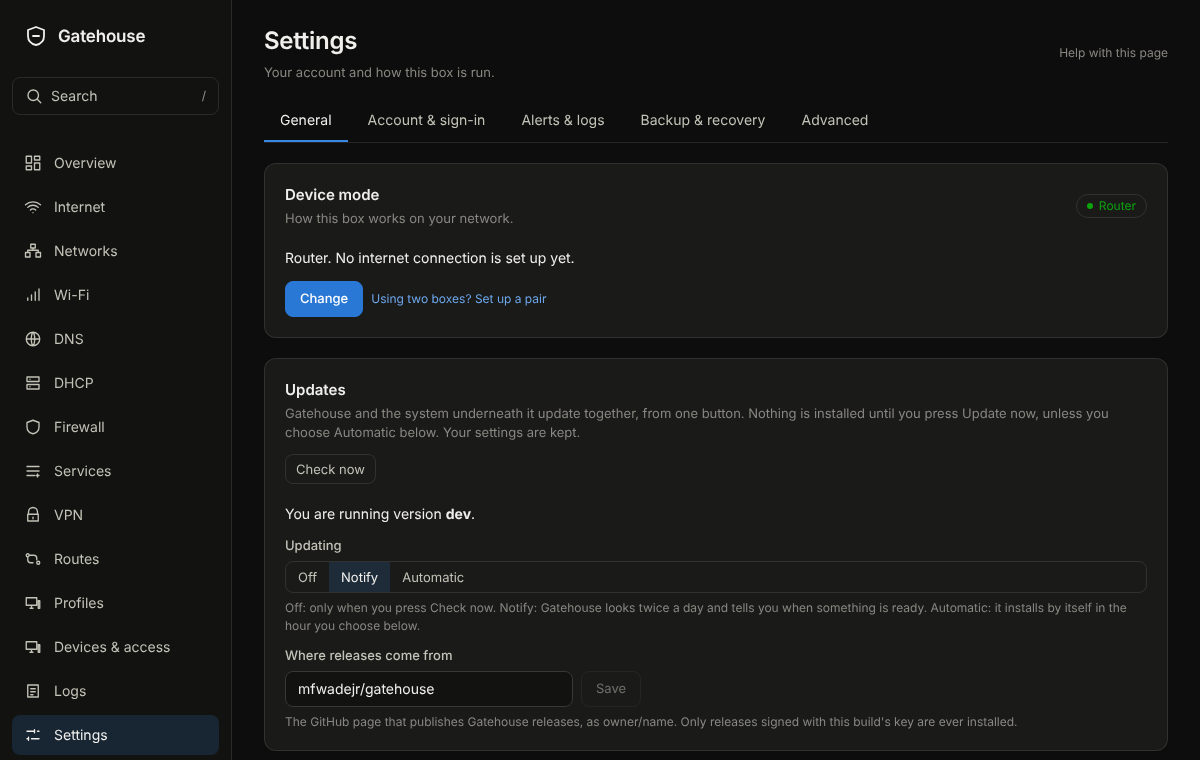
The picture is an example from a new, empty box; yours will show your own devices and numbers.
What is on the page
- General: Finish setting up (only while something is left) and Common setups, Device mode (Router or Bridge, with a three-step change), Updates (Check now, How often to check, Off, Notify or Automatic), Power (restart or shut down), Console address, Your place on the map (Find a place by zip or postal code, city or address, or type your latitude and longitude, click the map or pick a country; only the words you search for are sent, to OpenStreetMap, and the saved place stays on this machine and is placed within about a degree) and Appearance.
- Account & sign-in: Two-factor sign-in, Password, Where you are signed in and Remote login (SSH, off unless you turn it on; if the machine has no SSH identity yet, NopeWarden makes one when you turn it on).
- Alerts & logs: Alerts (ntfy or email, with quiet hours), Send logs elsewhere, Send traffic records (NetFlow / IPFIX), SNMP and Storage (what is kept on this machine's disk, about how much room each kind takes, and when it is removed).
- Backup & recovery: Backups, Changes (a copy before every change, to go back to), My network (a printable summary with a map) and Reset to default.
- Advanced: High availability (two boxes as a pair), Bridge mode (all the detailed settings), Traffic labels, Guest sign-in page and Lists used for blocking (the version of the app names and topic lists NopeWarden blocks by).
Administrators see all five tabs. Other accounts see only their own sign-in settings and Appearance. The page reopens on the tab you used last.
The Advanced and alert cards in more detail
- Send logs elsewhere: copies NopeWarden's events to a syslog server you run, such as a NAS or a log tool. Enter its address and port, switch it on, and watch the card for the last send. It is off by default, and a server that is down never slows the firewall.
- Send traffic records (NetFlow / IPFIX): tells a traffic-analysis tool which devices talked to which, and how much. Only the collector you name receives it. Off by default.
- High availability: two NopeWarden machines as a pair. One is active; if it fails, the other takes over within seconds and devices keep their addresses. Bridge mode and a pair cannot be used together yet.
- Let a monitoring tool read this device (SNMP): read-only, shows the name, uptime and each port's traffic to a tool such as a graphing server. Off by default; set a community string before you switch it on.
-
Bridge mode: use NopeWarden as a filter between another router and your network without routing or changing addresses. Switch it on from Device mode first; this card holds the detailed settings.
-
Storage: a table of everything NopeWarden keeps (connections, DNS lookups, activity, device traffic, data by country, overview charts, speed tests, threat alerts, outages and firewall change copies) with its entries, estimated size, oldest entry and the rule that removes it. Set how long alerts and outages are kept, and how many firewall change copies to keep. Clean up now applies the rules straight away. Sizes are estimates.
Common tasks
- Change mode: General, Device mode, Change, then follow the three steps. Nothing is saved until the last step, and you have 60 seconds to keep it.
- Turn on two-factor sign-in: Account & sign-in, Turn on, scan the code.
- Make a backup: Backup & recovery, Back up now.
Example
Use Notify for updates: NopeWarden tells you when one is ready and you press Update now when it suits you.
If something goes wrong
A mode change that is not kept goes back on its own, and the card says so. See Getting back in for lock-outs.
One schedule for every recurring job
Update checks, blocklist refreshes, country lists and threat rules all use the same schedule editor: Every N hours, Daily at a time, Weekly on a day and time, or Off. The sentence beside it says in plain English when the next run is. A job that fails retries after 5 minutes, 15, 30, and then every hour until it works.
Getting back in
NopeWarden is built so that a wrong setting cannot lock you out for good. This page lists the ways back, from the easiest.
A change went wrong and you can still see the console
Every network and firewall change you apply starts a 60-second countdown. If you can still reach the console, the change is kept on its own. If you cannot, everything goes back by itself after the minute. To go back sooner, press Undo now on the countdown.
To go back to an earlier point later, open Settings, Backup & recovery and use Changes. It keeps a copy from before each change. Pick a point to return to it.
You cannot reach the console from your computer
- Check the cable and that your computer is on the network you manage NopeWarden from.
- Look at the screen of the NopeWarden machine. It always shows the console address.
- Open that address in your browser. If you changed the console port and forgot it, the screen shows the port too.
You are locked out of the console
Use the recovery screen on the machine's own keyboard and screen. It does not need the network, and it only works at the machine, never over the network.
- Press Alt+F2 on the machine to open the recovery screen.
- Choose what you need: set a new password for an account, clear an account's two-step sign-in, restore the safe starting firewall rules, put the console back on port 443, or remove any limit on who may manage NopeWarden.
- Restart the console or the machine if the screen says so, then sign in again.
You forgot your password, or lost your authenticator
Both are fixed from the recovery screen above: set a new password, or clear two-step sign-in for the account and turn it on again after you are in.
The internet is down
Open Overview or Internet. Each connection shows what is wrong in words: No link means check the cable or modem, No internet means the modem is answering but the provider is not. Restart the modem first. If you have two connections, NopeWarden uses the other one on its own.
Last resort
Under Settings, Backup & recovery, Reset network settings puts networks, firewall rules, port forwards, DHCP, DNS names and lists, and VPNs back to a clean start, and keeps your accounts, sign-in settings, update settings and console port. Factory reset erases everything and opens the setup wizard again. Both save a copy of your settings first, which you can download, and ask for your authenticator code if you use one, or your password.
Reference
What is not included
- Wireless (Wi-Fi): not included. There are no Wi-Fi drivers or firmware on the installer, and wireless cards are blocked from loading. Use a separate access point.
- ARM builds and Secure Boot signing: not built yet.
Ports NopeWarden uses
- 443: the console (HTTPS). You can change it under Settings, General, Console address.
- 53: DNS, on your networks only.
- 67 and 68: DHCP, on the networks where it is switched on.
- 22: remote login (SSH). Off unless you turn on Remote login under Settings, Account & sign-in. It is never reachable from the internet side.
What Apply does
Changes to networks and the firewall are saved first and applied when you press Review and apply. NopeWarden checks the new firewall before loading it. After loading, a 60-second countdown starts. If your browser can still reach the console, the change is kept automatically. If not, it is undone. Undo now and Keep this change let you decide sooner.
The order things are checked in
- Firewall: each network has a type. The type decides what it can reach. Rules you add are checked from the top; the first match wins.
- DNS: your own always-allow and always-block exceptions beat every list.
- Routes: the first route that matches is used, so put the more specific ones at the top.
- VPN routing: a device sent through a VPN is routed by its address. Its name lookups go through the VPN too.
When a protection feature fails
Blocking apps and topics, and threat watching, only add protection. If they fail, your internet carries on and the protection is lost; your traffic is never held up. A block that cannot be worked out lets the lookup through, and the Logs say so (once an hour). Threat watching reads copies of the traffic, so if it stops, crashes or is removed nothing changes for your devices; if it uses all of its processor share for ten minutes NopeWarden switches it off and says why. Details are in the Protection chapter.
Updates
NopeWarden looks for updates every 12 hours unless you change How often to check (6 hours, 12 hours, a day, a week, or your own number of hours from 1 to 720). Under Settings, General, Updates you choose Off (only when you press Check now), Notify (it tells you) or Automatic (it installs once a day in the hour you choose). Updates are signed; NopeWarden installs only releases signed with its own key. If a new version fails to start, the previous one comes back.
Backups
Backups are made on a schedule under Settings, Backup & recovery. A backup is only worth having if it restores, so each one is checked as it is made. Keep a copy on another computer or drive.
Words used in the console
- Network: a separate group of devices, such as Home or Guests. Each is one port, several ports, or a VLAN.
- Profile: which blocklists and hours apply to a device.
- Kill switch: if a VPN drops, the devices using it lose internet instead of falling back to the normal connection.
- Pair: two NopeWarden machines working together; if one fails, the other takes over.